How E-Way Easy Simplifies the E-Way Bill Workflow
A walkthrough of the E-Way Easy Android app: one-time setup, the 3-step Invoice → Review EWB → Generated flow, invoice PDF import and managing e-way bills.
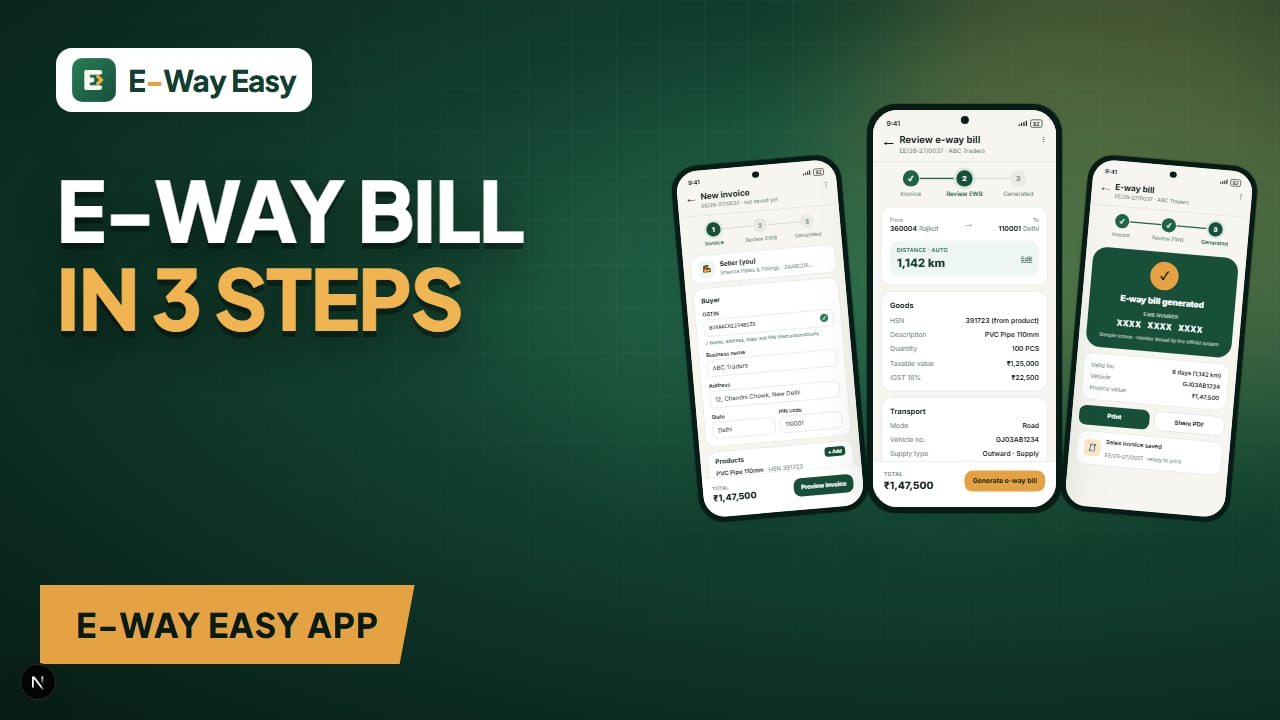
Table of contents
- The problem it is built for
- One-time setup
- The 3-step flow: Invoice → Review EWB → Generated
- Step 1: Invoice
- Step 2: Review EWB
- Step 3: Generated
- The dashboard
- Help when you need it
- Example (illustrative)
- What to keep in mind
- Common mistakes new users make
- Get started
- After generation: Part-B, consolidation, cancellation and extension
- What it costs
- Official sources
Quick answer: E-Way Easy is an independent Android app that creates your GST invoice and files the e-way bill on the official NIC system through an authorised GSP, using your own API login. It also updates Part B, extends, cancels and creates consolidated e-way bills, at 5 credits per action with no yearly subscription.
Preparing an e-way bill is rarely hard in itself. What slows people down is everything around it: finding the buyer's GSTIN and PIN code, remembering the HSN code, working out the distance, keeping invoice numbers in order, and making sure the invoice and the e-way bill say the same thing. E-Way Easy is an Android app built to take that repetitive work off your hands, so a dispatch can be prepared from a phone in a few minutes.
This article walks through what the app does today, step by step.
Note: E-Way Easy is an independent app. It is not a government portal and is not affiliated with GSTN or NIC. E-way bills are filed on the official NIC E-Way Bill System through an authorised GST Suvidha Provider (GSP), using your own e-way bill API login.
The problem it is built for
For many small businesses, the e-way bill process looks like this:
- Raise an invoice in one place.
- Open the portal on a computer.
- Type the buyer's GSTIN, address and PIN again.
- Look up the HSN code again.
- Estimate the distance.
- Type the vehicle number.
Every repeated step is a chance for a mismatch between the invoice and the e-way bill. The app's approach is simple: enter information once, reuse it, and review everything together before generating.
One-time setup
Before the first e-way bill, there is a short setup: sign in with email or Google, add your business GSTIN, and connect your e-way bill system API login. The app guides you through the API login once and stores it encrypted; it is used only for the bills you ask for. See connecting your e-way bill API login.
The 3-step flow: Invoice → Review EWB → Generated
Creating an invoice in E-Way Easy follows three clearly marked steps.
Step 1: Invoice
Your own (seller) details are saved, so you start straight with the buyer and the goods.
- Or import an invoice PDF. If the invoice was made in other billing software, import the PDF. The app reads the buyer, GSTIN, items, HSN codes and totals; you review and correct them before generating. See invoice PDF to e-way bill.
- Buyer GSTIN autofill. Enter the buyer's GSTIN and name; the address, state and PIN code fill automatically. If the buyer is unregistered, leave the GSTIN empty.
- Saved buyers. Regular buyers are saved in a Buyers list, so you can select them instead of typing.
- Saved products with search. Pick goods from your Products list using search.
- HSN from the product. The HSN code fills from the saved product. You can edit it manually if needed.
- Invoice numbering in your own series. Set an invoice number pre-series and the app numbers invoices automatically, so you avoid duplicates and gaps.
Step 2: Review EWB
Before anything is finalised, the app shows the e-way bill details for review.
- Distance from PIN codes. The distance is calculated automatically from the dispatch and delivery PIN codes. You can edit it if your actual route differs.
- Invoice preview. You can preview the sales invoice before saving, so you can check the invoice alongside the e-way bill details.
This review step is where most errors get caught: a wrong delivery PIN, an unexpected distance, an HSN that does not look right.
Step 3: Generated
Once reviewed, tap Generate. Details are checked before filing, and the e-way bill number comes back from the official system. You can download the e-way bill PDF and share it on WhatsApp or email, or print it. The sales invoice is created as part of the same workflow, so the two stay consistent.
The dashboard
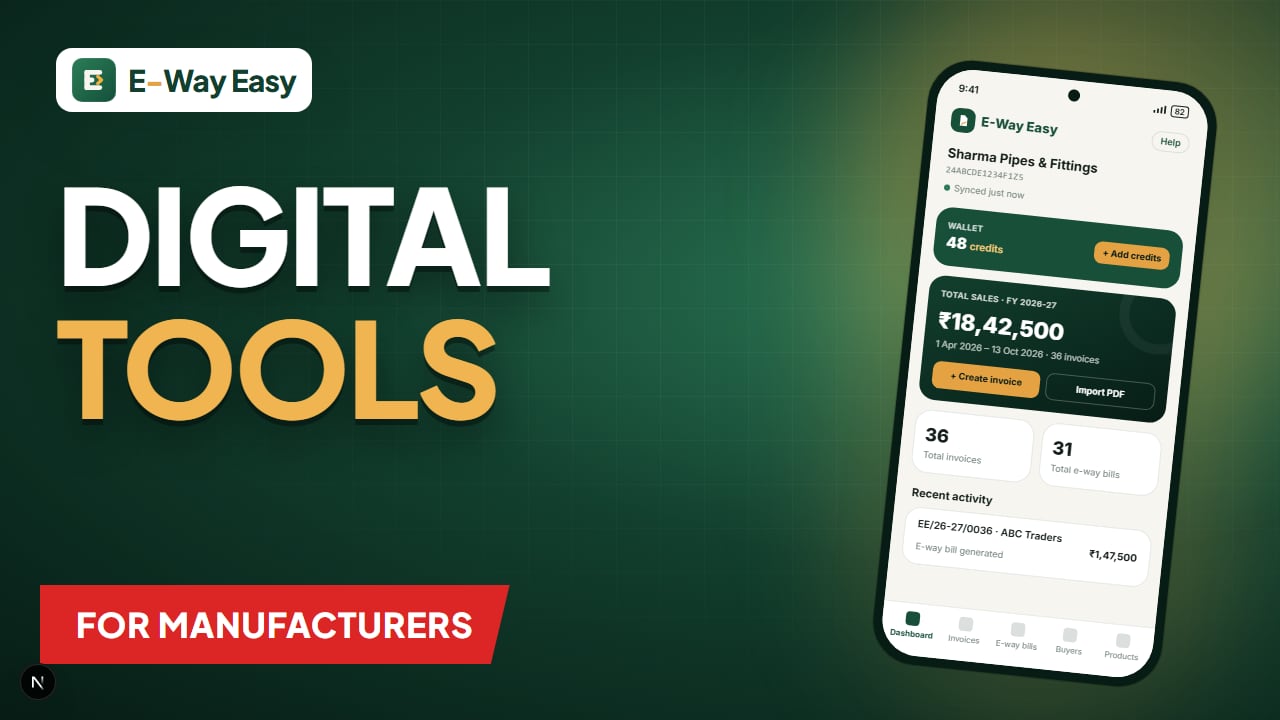
The home screen gives a quick view of the business:
- Business name and GSTIN
- Total sales for the financial year
- Counts of invoices and e-way bills
- Recent activity
The dashboard also has an Import PDF option for invoices made elsewhere.
Help when you need it
Help and support are available inside the app, so you can raise a question without leaving the screen you are on.
Example (illustrative)
The owner of a small Rajkot hardware manufacturer (GSTIN 24ABCDE1234F1Z5) is at the factory when a dealer calls for an urgent order.
- On the phone, he opens Create Invoice. His own details are already there.
- He selects the dealer from Saved Buyers. For a new dealer, he would type the GSTIN, and the address, state and PIN would fill in.
- He searches "hinge" in Products, adds two items; HSN codes fill from the products.
- The next invoice number appears automatically in his series.
- On Review EWB, the distance has been calculated from the PIN codes. He checks the totals and previews the invoice.
- He completes the flow, and the driver leaves with the invoice and e-way bill details.
The whole process takes a few minutes, without re-typing details he has entered before.
What to keep in mind
- The rules are still yours to follow. The app helps you prepare correct data, but you remain responsible for whether an e-way bill is required, the right reason for transport, and the vehicle details. See e-way bill rules in India: a practical guide.
- Check edits carefully. HSN and distance can be edited manually. Edit only when you have a genuine reason, such as a route longer than the PIN-to-PIN distance (the portal allows up to 10% more than its own calculation).
- Keep your masters clean. Saved buyers and products save time only if they are accurate. Verify a new buyer's GSTIN once; see GSTIN verification.
- One consignment at a time. The app is designed for preparing invoices and e-way bills individually on a phone. For very high-volume bulk uploads, the official portal's bulk facility is the route; see how to generate bulk e-way bills.
Common mistakes new users make
- Entering the billing PIN instead of the delivery PIN for a buyer who has multiple sites
- Not setting up the invoice series before the first invoice
- Saving products without checking the HSN code and rate
- Skipping the review step when in a hurry
Get started
E-Way Easy is available for Android. Download the app or see the full feature list. For background on the process itself, read how to generate an e-way bill step by step.
After generation: Part-B, consolidation, cancellation and extension
The app is not only for creating a new e-way bill. From the same app you can also update Part-B when the vehicle changes, create a consolidated e-way bill for several consignments in one vehicle, cancel an e-way bill within the 24-hour window, and extend validity when goods are delayed. Saved transporters and vehicles make Part B updates quicker. Each of these goes through the official e-way bill system, so the usual rules still apply. See managing e-way bills in the app and the consolidated e-way bill guide.
What it costs
E-Way Easy uses pay-as-you-go wallet credits, with no yearly subscription. 1 credit = ₹1, and each e-way bill action — generating, updating Part-B, consolidating, cancelling or extending validity — costs 5 credits (₹5). Credits are taken only when the action succeeds; if the government portal rejects it, they go back to your wallet automatically. Packs start at 50 credits for ₹50, and you can add any other amount. Payments go through Razorpay (UPI, cards or net banking). See the pricing page for details.
Official sources
For the rules behind every e-way bill, refer to the official E-Way Bill System and the GST portal.
Frequently asked questions
Is E-Way Easy a government portal?
No. E-Way Easy is an independent app and is not affiliated with GSTN or NIC. The official e-way bill system is at ewaybillgst.gov.in.
Does E-Way Easy work on iPhone?
E-Way Easy is an Android app.
How is the app paid for?
There is no yearly subscription. You buy wallet credits in the app (1 credit = ₹1), paid through Razorpay using UPI, cards or net banking, and each e-way bill action costs 5 credits.
Sources and references
- E-Way Bill System (official portal)ewaybillgst.gov.in
- GST portalwww.gst.gov.in
This article is general information, not tax or legal advice. GST and e-way bill requirements depend on the transaction, applicable notifications and state-specific provisions. Check the official portals before you rely on it.
Written by
Bhavesh AkabariBhavesh Akabari writes the E-Way Easy guides on e-way bills, GST invoicing and day-to-day compliance workflows for Indian manufacturers, wholesalers and traders. Every compliance article is checked against official GST and e-way bill sources and carries a "last verified" date.
Related articles
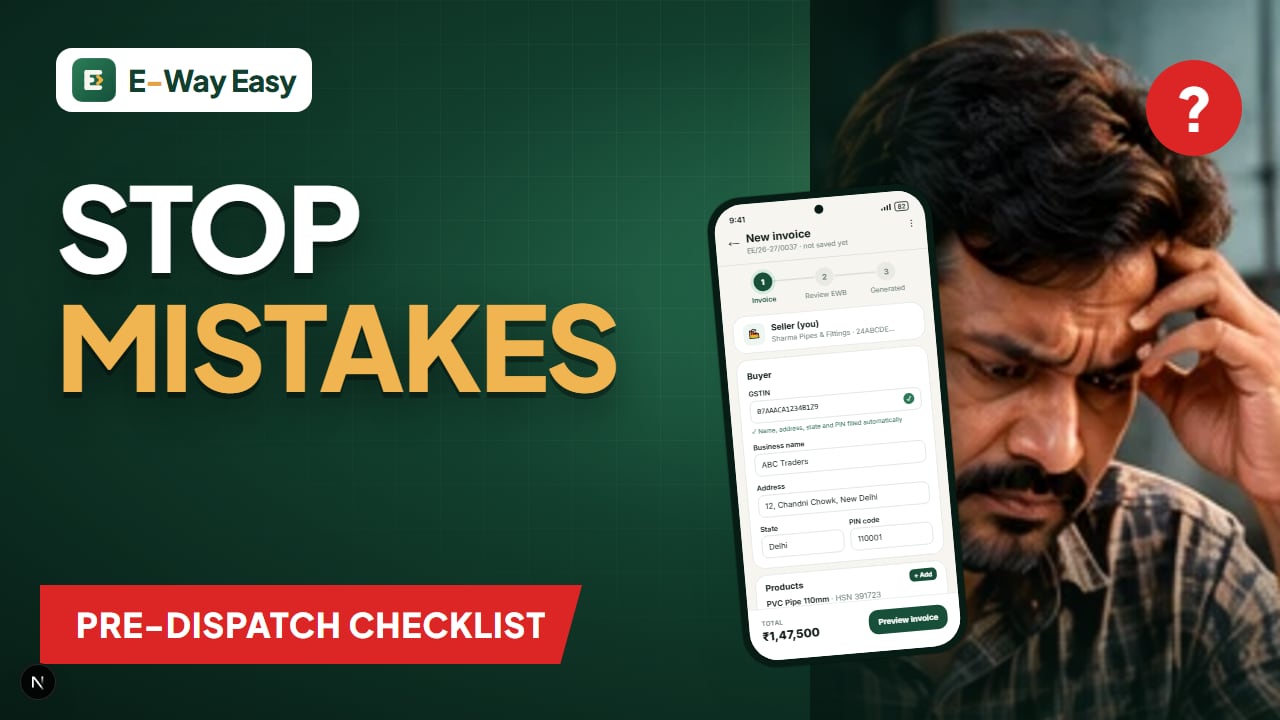
How to Avoid Errors in Invoice and Transport Details
The invoice and transport errors that most often cause e-way bill cancellations and roadside trouble, and a pre-dispatch checklist to catch them.
By Bhavesh Akabari · · 6 min read
Digital Tools for Indian Manufacturers
A practical map of the digital tool categories small and mid-sized Indian manufacturers use — accounting, invoicing, compliance, inventory, production and communication.
By Bhavesh Akabari · · 5 min read