How to Generate an E-Way Bill: Complete Process
Step-by-step process to generate an e-way bill on the official portal: login, Generate New, transaction type, sub-type, document details, Part A, Part B, submit and print. Also covers SMS, app, API and IRN-based generation.
Last verified against official sources: 11 Oct 2026
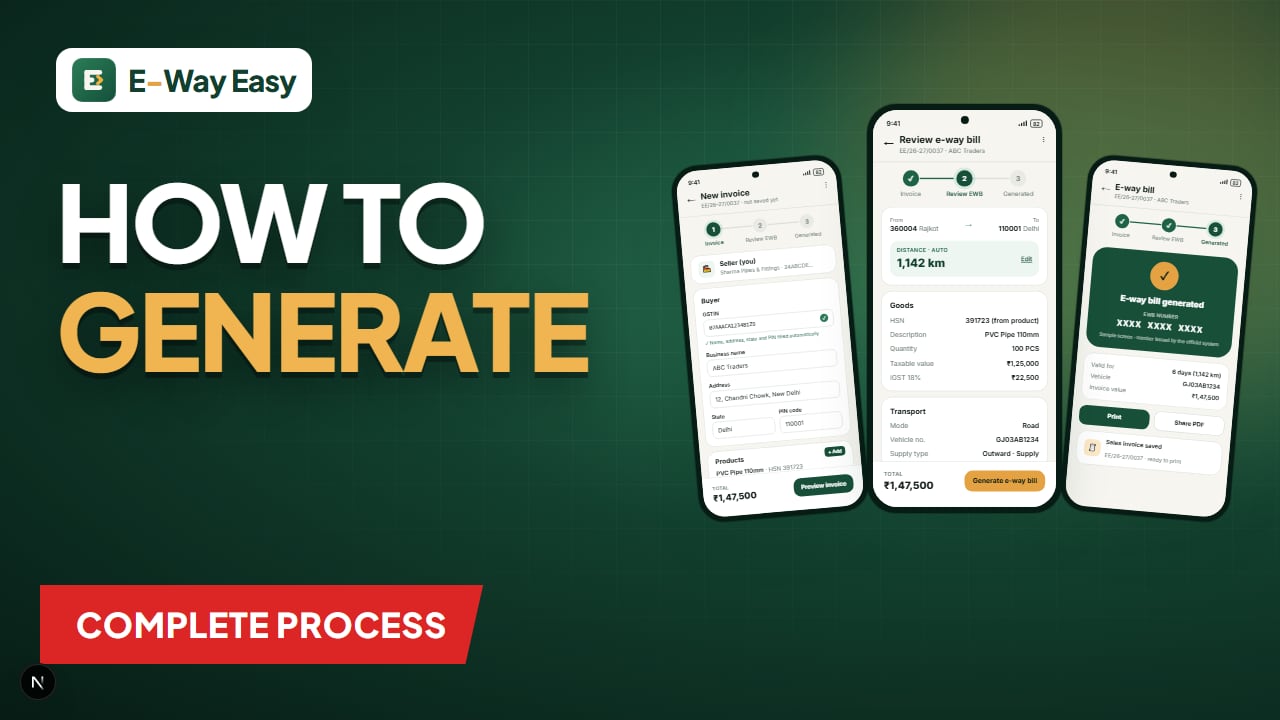
Table of contents
- Before you start
- Step-by-step on the official portal
- Step 1: Log in
- Step 2: Choose Generate New
- Step 3: Select transaction type
- Step 4: Select sub-type
- Step 5: Enter document details
- Step 6: Fill the rest of Part A
- Step 7: Fill Part B
- Step 8: Submit
- Step 9: Print or share
- Other ways to generate
- How the E-Way Easy app workflow fits in
- Example (illustrative): intra-state sale
- Example (illustrative): inter-state sale close to the threshold
- Common mistakes
- Limitations
- Official sources
Quick answer: Log in to the official e-way bill portal, choose Generate New, enter the transaction, document and goods details in Part A, add the vehicle or transport details in Part B, and submit to get a 12-digit e-way bill number. SMS, the official app, bulk upload, authorised API and IRN are other routes.
Generating an e-way bill takes a few minutes once your invoice is ready, but small slips — a wrong PIN code, the wrong sub-type, a missing vehicle number — cause most of the trouble later. Part A cannot be edited after generation, so a wrong GSTIN or invoice number means cancelling and starting again. The way to get it right first time is to have the details ready before you log in and move through the form in order.
This guide walks through the official portal flow field by field, then covers the other generation routes and how the E-Way Easy app workflow fits in. Screen labels can change between portal updates, so treat it as a map and the official user documentation as the final reference.
Before you start
Keep these ready:
- The tax invoice, bill of supply or delivery challan for the goods.
- Recipient GSTIN (or "URP" for an unregistered recipient), name and address.
- Dispatch-from and ship-to PIN codes.
- HSN code, quantity, unit and taxable value of each item, with tax rates.
- Transporter name and ID (the transporter's GSTIN, or TRANSIN for an unregistered transporter) and vehicle number if known, or the transport document number for rail, air or ship.
- A rough idea of the road distance between the dispatch and delivery PIN codes.
- Access to the mobile number registered for OTP-based login.
The full list, split into Part A and Part B, is in Documents and Data Required.
Note: As reported by GSTN advisories, from 1 January 2025 an e-way bill cannot be generated against a base document dated more than 180 days before the generation date. Generate promptly.
Step-by-step on the official portal
Step 1: Log in
Go to the official e-way bill portal (or the E-Way Bill 2.0 portal, which works with synchronised data). Enter your username, password and captcha. Multi-factor authentication now applies to all taxpayers, so you will be asked for an OTP on the registered mobile number or an authenticator.
First-time users register on the portal with their GSTIN and the mobile number registered with GST.
Step 2: Choose Generate New
From the e-way bill menu on the dashboard, choose the option to generate a new e-way bill. The Part A form opens.
Step 3: Select transaction type
- Outward — you are the supplier sending goods out.
- Inward — you are the recipient bringing goods in (for example, when buying from an unregistered supplier).
The portal also asks for the transaction pattern: a regular movement, or a "bill to–ship to" / "bill from–dispatch from" arrangement where the billing and delivery parties or places differ. Pick the one that matches your invoice.
Step 4: Select sub-type
Sub-type is the reason for movement. Common options:
| Sub-type | When to use |
|---|---|
| Supply | Normal sale |
| Export / Import | Cross-border movement |
| Job Work / Job Work Returns | Goods sent to or returned from a job worker |
| SKD/CKD/Lots | Machinery sent in parts or lots |
| Recipient Not Known | Line sales where the buyer is not fixed at dispatch |
| For Own Use | Stock transfer or own goods moved |
| Exhibition or Fairs | Goods taken to a trade fair |
| Line Sales | Goods sent to sell along a route |
| Sales Return | Goods coming back from the buyer |
| Others | Movement not covered above (describe it) |
The sub-type controls which document types the portal accepts in the next step, so choose it carefully. A branch stock transfer, for instance, is not a sale and usually moves on a delivery challan, not a tax invoice.
Step 5: Enter document details
Choose the document type (tax invoice, bill of supply, delivery challan, bill of entry or others), then enter the document number and date exactly as on the paper or PDF document. The combination of GSTIN, document type and document number must be unique — the portal will not accept the same document twice. A missing prefix or wrong year is a common cause of mismatch later: "INV/25-26/104" and "INV-104" are not the same document.
Step 6: Fill the rest of Part A
- From: supplier name, GSTIN, dispatch address and PIN. Your own details usually fill from your GSTIN, but the dispatch address is where goods actually leave — a godown or factory may differ from your principal place of business.
- To: recipient name, GSTIN (or URP), ship-to address and PIN, state. The portal fetches the registered name from the GSTIN. In a bill-to/ship-to arrangement the ship-to place can differ from the billing address; use the PIN of the actual delivery location, because the PIN codes drive distance and validity.
- Item details: product name, description, HSN code, quantity, unit, taxable value, and tax rates (CGST + SGST for intra-state, IGST for inter-state, plus cess if any).
- Totals: the portal adds up the consignment value. Check it against your invoice. Charges billed on the invoice, such as packing, form part of the taxable value.
- Transporter details: Transporter ID and name, if a transporter is involved.
- Approximate distance: the portal suggests the PIN-to-PIN distance. You can enter up to 10% more if the actual route is longer. See Distance Rules.
Step 7: Fill Part B
Select the mode of transport:
- Road: enter the vehicle number (format like GJ03AB1234), vehicle type (regular or over-dimensional cargo).
- Rail, air or ship: enter the transport document number (RR, airway bill, bill of lading) and date.
If the transporter will add the vehicle later, you can leave Part B blank and enter the Transporter ID in Part A. The transporter then updates Part B from their login before the goods move.
Step 8: Submit
Click submit. The portal validates the data — GSTIN status, document date, distance range and so on. If something is wrong, it shows a message near the field or at the top. Fix the underlying data rather than looking for a workaround, and submit again. On success, you get the e-way bill with a 12-digit EWB number, generation date and time, and validity.
Before the vehicle leaves, check the generated bill against the invoice:
- GSTINs of both parties
- document number and date
- total value
- PIN codes and distance
- vehicle number
- the "valid upto" date and time — long routes may need more days than the driver expects
Step 9: Print or share
Print the e-way bill or share the number with the driver. The person in charge of the vehicle must carry the invoice or challan and the e-way bill (printed, as the number, or via a mapped RFID device).
Other ways to generate
The official system supports several routes. The exact steps for each are in the user documentation.
| Route | Who it suits | How it works in general |
|---|---|---|
| Web portal | Most businesses | Manual entry as described above |
| SMS | Users who need to generate from a basic phone | Register the mobile number on the portal, then send coded SMS messages in the prescribed format |
| Official mobile app | Taxpayers and transporters on the move | Register the device on the portal, then use the official app |
| Bulk upload | Businesses with many invoices a day | Prepare a JSON file with the official Excel-based bulk generation tool and upload it — see Bulk Generation |
| API / GSP integration | Large taxpayers with ERP systems | Authorised integration sends data directly to the e-way bill system |
| Using IRN | Taxpayers issuing e-invoices | Part A is filled from the e-invoice; you add transport details |
How the E-Way Easy app workflow fits in
E-Way Easy is an independent Android app, not a government portal. It is designed around one invoice at a time, in three steps:
- Invoice — Your seller details are saved. Enter the buyer's GSTIN and the name, address, state and PIN fill automatically (leave it empty for an unregistered buyer). Pick products from your saved list with search; the HSN code fills from the product, and you can edit it. Invoice numbers follow your own series.
- Review EWB — The e-way bill details are laid out from the invoice. The distance is calculated automatically from the PIN codes, and you can edit it manually. Check the values before you move on.
- Generated — After you tap Generate, the bill is filed on the official NIC e-way bill system through an authorised GSP using your own API login, and the e-way bill number comes back to the app. You can download the PDF and share it.
If the invoice was made in other billing software, you can import the invoice PDF instead of step 1 and review what the app read before generating.
The app's dashboard shows your sales for the financial year, invoice and e-way bill counts, and recent activity. Later actions on the same bill — updating Part B, cancelling, consolidating or extending validity — are also available, each using 5 wallet credits that are deducted only when the action succeeds. E-Way Easy is an independent app; whichever tool you use, you can always check an EWB number on the official portal. The same rules — consignment value, distance margin, Part B — apply whichever tool you use. See features or download the app.
Example (illustrative): intra-state sale
A Rajkot pipe manufacturer (GSTIN 24ABCDE1234F1Z5) sells PVC pipes worth ₹1,20,000 plus 18% GST to a builder in Ahmedabad (GSTIN 24PQRSX5678K1Z2).
| Field | Entry |
|---|---|
| Transaction type | Outward, regular |
| Sub-type | Supply |
| Document | Tax invoice RPM/26-27/0412, 14-10-2026 |
| HSN | Code from the product master |
| Taxable value | ₹1,20,000 |
| CGST 9% + SGST 9% | ₹10,800 + ₹10,800 |
| Consignment value | ₹1,41,600 |
| From PIN → To PIN | 360xxx → 380xxx |
| Distance | About 220 km (portal suggestion; up to 10% more allowed) |
| Part B | Road, vehicle GJ03AB1234 |
Because the distance is between 201 and 400 km, validity is 2 days.
Example (illustrative): inter-state sale close to the threshold
A Surat textile trader sends goods to a buyer in Indore. The movement is inter-state, so IGST applies.
| Line | Qty | Taxable value | IGST rate | IGST |
|---|---|---|---|---|
| Cotton fabric | 600 m | ₹54,000 | 5% | ₹2,700 |
| Packing charges | — | ₹1,000 | 5% | ₹50 |
| Total | ₹55,000 | ₹2,750 |
Consignment value = ₹55,000 + ₹2,750 = ₹57,750. That is above ₹50,000, so an e-way bill is needed. Note that the threshold is tested on the consignment value including GST, not on the taxable value alone. Sub-type is Supply, and the tax lines are IGST only. (Rates are illustrative; confirm the correct HSN and rate for your goods with the HSN code lookup.)
Common mistakes
- Choosing "Supply" for a stock transfer to your own branch, or for a job work dispatch — use the sub-type that matches the actual reason, or the e-way bill will not match your challan.
- Entering IGST for an intra-state movement, or CGST/SGST for inter-state.
- Typing a different invoice number from the one printed on the invoice.
- Using the office PIN instead of the godown PIN as the dispatch location.
- Leaving Part B blank and forgetting to tell the transporter to fill it — the truck then leaves with a bill that is not valid for movement.
- Entering a distance more than 10% above the portal suggestion and getting rejected.
- Not checking the "valid upto" time for long routes.
If something has already gone wrong, see Common E-Way Bill Errors and Cancellation.
Limitations
- Part A cannot be edited. Cancellation is possible only within 24 hours and only if the bill has not been verified in transit; then generate afresh. See Correction.
- The recipient can reject an e-way bill within 72 hours (or before delivery, if earlier).
Some situations — imports with bill of entry, SKD/CKD lots, consolidated e-way bills for many consignments in one vehicle — have extra steps. Check the official user documentation for those.
Official sources
Follow the current screens on the official e-way bill portal and the user documentation. Screen labels can change after portal updates. Read Rule 138 for the legal position.
Frequently asked questions
Do I need a separate registration for the e-way bill portal?
GST-registered taxpayers register on the e-way bill portal using their GSTIN and the mobile number registered with GST, and create a username and password. Unregistered transporters enrol separately to get a Transporter ID.
Can I generate an e-way bill without a vehicle number?
You can generate Part A without the vehicle number, but the e-way bill is not valid for movement until Part B is filled, unless the 50 km same-state exemption applies.
What is the difference between transaction type and sub-type?
Transaction type is mainly outward or inward from your side. Sub-type is the reason for the movement, such as supply, job work, export, import, sales return or exhibition.
Can I generate an e-way bill from an e-invoice?
Yes. Taxpayers who issue e-invoices can generate the e-way bill using the IRN. Part A is filled from the e-invoice data, and you add transport details.
Does E-Way Easy generate the e-way bill?
E-Way Easy files the e-way bill on the official NIC e-way bill system through an authorised GST Suvidha Provider (GSP), using your own e-way bill API login, and the e-way bill number comes back from that system. E-Way Easy itself is not a government portal.
Can I edit an e-way bill after generating it?
Part A cannot be edited. If Part A is wrong, cancel within 24 hours (if not verified in transit) and generate a new one. Part B, the vehicle details, can be updated during validity.
Sources and references
- E-Way Bill System (official portal)ewaybillgst.gov.in
- E-Way Bill 2.0 portalewaybill2.gst.gov.in
- E-Way Bill user documentationdocs.ewaybillgst.gov.in
- GST tutorialstutorial.gst.gov.in
This article is general information, not tax or legal advice. GST and e-way bill requirements depend on the transaction, applicable notifications and state-specific provisions. Check the official portals before you rely on it.
Editorial update history
- Updated the E-Way Easy section with invoice PDF import and how the app files through an authorised GSP.
- Merged our separate article on generating an e-way bill step by step into this guide
- Added note on multi-factor authentication at login and the 180-day base document limit.
- First published.
Written by
Bhavesh AkabariBhavesh Akabari writes the E-Way Easy guides on e-way bills, GST invoicing and day-to-day compliance workflows for Indian manufacturers, wholesalers and traders. Every compliance article is checked against official GST and e-way bill sources and carries a "last verified" date.
More e-way bill guides
Documents and Data Required for E-Way Bill Generation
Documents and data you need to generate an e-way bill, split into Part A and Part B, plus what the driver must carry and a printable checklist.
E-Way Bill Distance Rules: PIN-to-PIN, 10% Margin and 50 km Part B Exemption
How distance works in an e-way bill: the portal's PIN-to-PIN auto-calculation, the 10% margin, the 4,000 km cap, same-PIN movements, the 50 km Part B exemption, and how distance drives validity.
E-Way Bill Validity: Calculation, Extension and Expiry
How e-way bill validity is calculated for normal and over-dimensional cargo, when the clock starts and ends, how to extend an expiring bill, and what to do if it expires, with timestamped examples.
Common E-Way Bill Errors and How to Fix Them
The everyday problems businesses face while generating e-way bills, explained in plain words: GSTIN issues, duplicate documents, distance rejections, tax mismatches, login trouble, expired bills and more, with practical fixes.